
The AI agent that asks for approval before sending.
Bob does the legwork: reads the threads, checks the numbers, writes the email. Then he stops and shows you exactly what will go out, to whom. Nothing leaves until someone says yes.
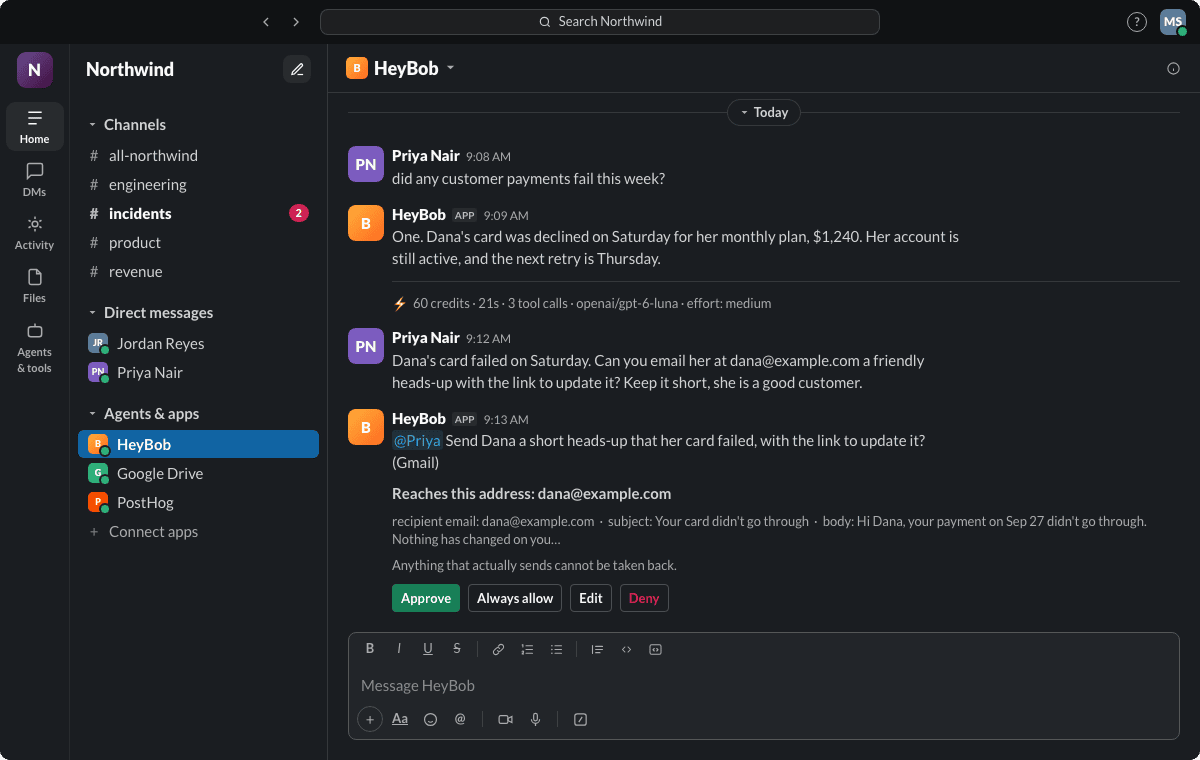
- Bob asks before acting. Reading is automatic. Sending an email, adding an invite or changing a record waits for a button.
- You see the whole email. To, Cc, Bcc, the account it goes out from, the subject, the full message and every attachment’s name and size.
- Edit before approving. In Slack, change a detail and approve it in one go. The change applies to that one send.
- Name your approvers. Admins can pick who may approve anything that goes outward. Everyone else is told who can.
- A receipt on every run says who approved what, and admins can download every action as a CSV.
Four things on every approval card
An approval card is only useful if you can decide from it. So the card puts the decision in front of you, not a link to somewhere else.
The whole email, before it goes.
Full email previews
The card shows the email Bob will send, start to finish, so you read what the customer will read. If it reaches an address nobody typed, he asks first even where he normally would not.
Change a word. Then send.
Edit before approving
In Slack, press Edit, fix the detail, and it goes out with your change. An edit never turns into standing permission, so Always allow is not offered on an edited card.
Only the people you pick can say yes.
Named approvers
By default anyone in the workspace can answer a card. An admin can tick the people who may approve emails, posts and messages into other channels. A card about someone’s own mailbox only that person can answer.
Who said yes, written down.
An audit trail you don’t have to build
The receipt names who approved what. Admins see every gated action on the Approvals page, and every action Bob took on the Activity page, which downloads as a CSV.
What needs a yes, and what doesn’t
Asking about everything trains people to press Approve without looking. So Bob reads on his own and asks before he changes anything. Here is the default.
| What Bob is about to do | What happens |
|---|---|
| Read your email, a sheet, a CRM record, the web | He just does it |
| Draft something for you to look at | He just does it. Nothing is sent |
| Send an email, add a calendar invite, update a record | Approval card first |
| Send to an address nobody typed | Approval card first, even if that app is set to run without asking |
| Reply in the Slack thread where you asked | He posts it. An admin can make him ask |
| Run a schedule at 3am | He acts only inside the apps you agreed to when you set it up, and refuses the rest |
Admins can change any of this in plain words (“stop asking about Google Calendar”) or per app and per action on the Policies page: run without asking, ask, or always refuse. The most specific rule wins. The full rules are in the help article.
Four buttons, and what each one means
Approve
Bob goes ahead, once. The same job picks up where it stopped.
Edit
On Slack cards. Change a detail first. The change is for this one time only.
Deny
Bob does not do it. He says what was declined, carries on with what the job still allows, and doesn’t try again unless you ask.
Always allow
Bob stops asking about this one kind of action for the workspace, and replies with exactly what he will now do on his own. Type /bob grants to see these, and take any one back.
Approve in Slack or in the HeyBob app
The card shows up where you asked. In Slack it lands in the thread. In the HeyBob app for Mac, Windows and Linux it lands in the conversation, with the same full email and the same Approve, Always allow and Deny. Whichever you use, the decision is made by a person, in the place the request came from.
If nobody answers, Bob nudges halfway through the wait. If it still times out, the card closes, nothing is sent, and he carries on without that step and says so.
The trail behind every yes
An approval you can’t look up later is a story, not a control. Every one of Bob’s leaves three marks:
- The receipt. Under the finished job, next to what it cost: who approved what.
- The Approvals page. For admins, every action that hit the gate and how it ended: approved or denied by a person, or run under a rule. Requester and approver by name. A send that reached an address nobody asked for gets its own row.
- The Activity page. For admins, every action Bob took in the workspace, newest first: what he did, whether it worked, how long it took and who it was for. Download any date range up to a year as a CSV.
For what a good AI audit log should hold, see what to log in an AI agent audit trail. For how to design the rules themselves, read the AI agent approval workflow playbook.
Control over what he spends, too
Asking before acting covers what Bob does. The same receipt covers what it cost. Every finished job shows its credits, and admins can cap spending for the whole workspace and for each person. Here is how to track and cap AI agent costs per person, and the plans are on the pricing page.
Comparing AI employees? See the side by sides on Bob vs Viktor, Bob vs Lindy and every comparison.
Fair questions
Will Bob send an email without asking me?
Not when you asked for the work. Anything that changes something in your apps, like sending an email, adding a calendar invite or updating a record, waits for someone to press Approve. Reading is automatic. Slack messages in the thread you started are the one exception, and an admin can change that.
Can I change the email before it goes out?
Yes. In Slack, press Edit on the approval card and change a detail first. The change applies to this one send only, and Always allow is not offered on an edited card.
Can I choose who is allowed to approve?
Yes. An admin can tick the people who may approve anything Bob sends outward, such as an email or a post. Bob mentions them on the card, and anyone else who presses a button is told who can. A card about someone’s own account, such as their mailbox, can only be answered by that person.
What if nobody answers the approval card?
Bob nudges halfway through the wait. If nobody decides in time, the card closes as timed out, and Bob carries on without that step and says so in the thread. Nothing is sent.
How do scheduled jobs handle approvals?
Nobody is around at 3am to press a button, so when you set up a schedule Bob tells you which apps it may use and whether it may change things in them. Inside that list it acts. Outside it, it refuses and says so. How scheduled jobs work.
Can I see who approved what later?
Yes. The receipt under each finished job names who approved what. Admins also get an Approvals page listing every gated action and how it was resolved, and an Activity page of every action Bob took, which downloads as a CSV.
Nothing goes out without your yes.
Hand Bob one real email to write and watch the first approval card come in.