
Short answer: you need three things. A receipt on every run, so each job shows what it cost the moment it finishes. A page that adds it up by person. And spend caps per person and per workspace, so one busy teammate or one runaway schedule can’t empty the account. HeyBob ships all three today. This guide walks through them in the order you’d set them up.
Why per-user cost is the number that matters
An AI agent doesn’t cost the same every time. A quick question is cheap. A job that reads forty emails, checks a spreadsheet and writes a summary costs more. On a shared account, that means a single person, or a single automation, can use most of the month without anyone noticing until the bill.
Per-seat pricing hides this by charging everyone the same. Usage pricing is fairer, but only if you can see it. So the goal is simple: every job priced in the open, totals by person, and limits that stop overspend before it happens.
In HeyBob, everything is measured in credits. A credit is about a fifth of a cent. A typical question takes 140 to 200 credits, and every finished job costs at least 10. There is no charge per person: the whole workspace draws from one pool, which is exactly why caps per person matter. The full credit rules are in the help center.
Step 1. Read the receipt under every run
When Bob finishes a job, he posts a receipt line under the answer, in the thread where you asked. It shows what the job cost in credits, how long it ran, how many tool calls (individual steps, like looking something up in one of your apps) it took, and which model did the thinking.
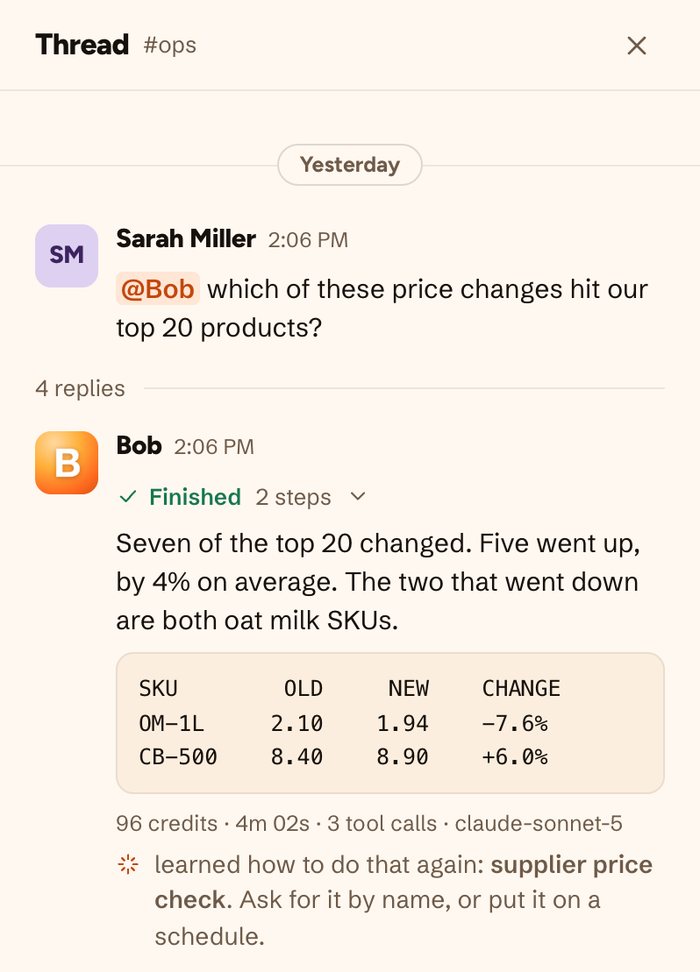
Other notes appear when they apply: who approved something, who Bob acted as, and how hard the model was asked to think. If a job ran well past what similar jobs usually cost, the receipt says so, with the range jobs like it normally take. That one line catches most surprises the same day they happen, not at the end of the month.
Step 2. Ask Bob what ran this week
You don’t need to open a dashboard for a quick check. Ask “what ran this week” in Slack or in the HeyBob app, and Bob lists your scheduled jobs, what each one did and what each one cost. A schedule with nothing to report posts no receipt but still uses credits, so this is the place to see it.
To check one task, ask him right after he finishes.
Step 3. Open the Usage page
The Usage page lives in the HeyBob console, the website where you sign in with Slack to see and manage Bob. It covers one billing period at a time:
- Runs, credits used (after any refunds), sandbox minutes and average credits per day, each compared with the previous period.
- A chart of credits by day, so a spike stands out.
- The latest runs, with who started each one, what it was, its status and what it cost.
- A picker to look back at any of the last twelve periods.
Every run is on that page: what it cost, how long it ran and which model ran it.
Step 4. See spend by person on the Spend page
The Spend page is where per-user tracking actually happens. Admins see one row per person with their credits for the period, split by where they went: jobs they asked for, page refreshes, Bob looking around on his own (if an admin turned that on) and meeting transcription. Work no single person started, like a webhook, sits on its own row so it never gets blamed on someone.
Members see only their own line. Nobody else’s spending is shown to them.
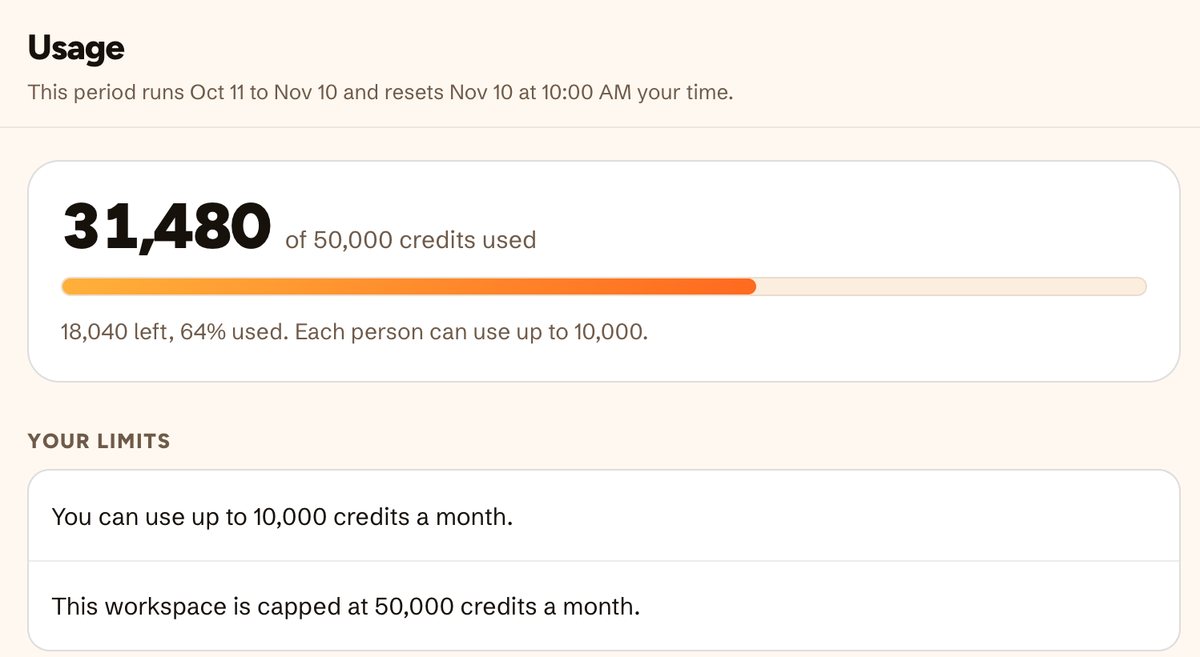
Each person gets their own ceiling.
Spend caps per person
Set on the Spend page. They cover what a person asks Bob for directly. Automations count against the workspace cap instead.
Step 5. Set a cap for each person
On the same Spend page, an admin sets a default cap that applies to everyone, then types a different number on any one person’s row. Some things to know:
- Until you set one, there is no personal limit. Any one person can use the whole workspace balance. The exception is the BYOK plan, where you bring your own AI account, which starts everyone at 200,000 credits a month.
- A personal cap covers what a person asks for. Schedules, webhooks and emails Bob handles on his own count against the workspace cap only, so a teammate’s cap never stops the morning report.
- What happens at the cap. Bob tells the person in the thread and names an admin who can raise it. He also holds off when what’s left is less than a typical job needs, rather than stopping halfway. Each admin gets one direct message per capped person per billing period, not a stream of alerts.
Step 6. Set a cap for the whole workspace
On the Billing page, an admin sets a monthly cap in credits. Leave it blank for no cap.
- At 80% of the cap, Bob warns you in the thread, once per billing period.
- At the cap, Bob starts no new jobs. He says the workspace has reached its monthly cap and that an admin can raise it.
- A job that is already running is never cut off halfway.
Hosted apps Bob built for you are billed to the workspace too, a small daily charge plus a charge for each hour they’re awake. They count against the workspace cap, never a person’s.
Step 7. Export the Activity log as a CSV
For month-end reviews, or to hand numbers to whoever does your books, open the Activity page. It lists every action Bob took in the workspace, newest first, with these columns:
| Column | What it tells you |
|---|---|
| When | The time of the action |
| What Bob did | The action, in plain words |
| Result | Whether it worked |
| Took | How long it took |
| On behalf of | The person it was for |
| Run | The job it belonged to, so you can match it to that job’s cost |
Press Download CSV and pick a date range of up to a year. You can narrow it to one run or one connected app first. Open it in any spreadsheet and you have a per-person record you can sort, filter and keep.
The Activity page also pairs with the Approvals page, which records every action that needed a yes and who gave it. Together they are your audit trail. Here is what a good AI agent audit trail should hold.
What happens to unused credits
Unused plan credits roll over one month, then expire. Top-up packs are $40 for 20,000 credits and never expire, so they are a good buffer for a busy month. On BYOK, top-ups are $75 for 200,000 credits.
If the workspace runs out entirely, Bob holds your request, tells you what jobs like it usually take and shows an Add credits button. He picks the job up the moment the credits land. If nothing arrives within 24 hours, he lets it go and you are not charged.
And when Bob gets something wrong, press Not right? Rerun free under his answer and say what was wrong. Each job can be rerun free once, and a workspace gets five free reruns a month. You shouldn’t pay twice for his mistake.
Plans start at 40,000 credits for $75 a month on Flex and go up to 1,200,000 credits for $1,425. BYOK is $349 a month with 1,000,000 credits included. New workspaces get $100 of work on us. See every plan, or read how much an AI employee costs for the bigger picture.
A setup that works for most small teams
- Set a workspace cap a little above what you expect to spend, so a bad week can’t surprise you.
- Set a default per-person cap, then raise it for the one or two people who use Bob most.
- Ask “what ran this week” every Monday.
- Download the Activity CSV at month end and keep it with your books.
Cost is half of staying in control. The other half is what Bob is allowed to do. He asks before acting, so nothing goes out without a yes. See how approvals work, or read about the controls an AI employee should have.
FAQ
Can I see what each person spent on the AI agent?
Yes. Admins see credits by person on the Spend page, split by where they went, plus a row for work nobody started directly. Members see only their own line.
Can I set a different limit for one person?
Yes. Set a default cap for everyone on the Spend page, then type a different number on any one person’s row.
Do scheduled jobs count against a person’s cap?
No. Schedules, webhooks and emails Bob handles on his own count against the workspace cap only. A personal cap covers what that person asks Bob for directly.
Will a cap stop a job halfway through?
No. A job that is already running is never cut off. At the workspace cap Bob starts no new jobs, and at a personal cap he tells the person and names an admin who can raise it.
Can I export AI agent usage to a spreadsheet?
Yes. The Activity page has a Download CSV button for any date range up to a year, with columns for when, what Bob did, the result, how long it took, who it was for and which job it belonged to.
Do unused credits roll over?
Plan credits roll over one month, then expire. Top-up packs of 20,000 credits for $40 never expire.