Update, October 30, 2026: rewritten to cover CRM cleanup, logging inbound email to HubSpot, and how approvals work on scheduled jobs.
The short version: Bob is a HubSpot AI agent you talk to in Slack or the HeyBob app. He searches contacts, companies and deals, reads records, creates contacts, updates deals and adds notes. He finds messy records for you to fix, turns inbound email into HubSpot notes, and asks before acting on anything that changes your CRM.
HubSpot connected. Ask in plain words.


Ask him to connect. He sends the link.
Sign in to HubSpot once from the link in the thread. From then on Bob works with exactly the access your HubSpot user has.
Short answer
A HubSpot AI agent in Slack lets your team ask about and update the CRM without leaving the conversation the work started in. Bob, the AI employee from HeyBob, does that. He lives in Slack and in the HeyBob app for Mac, Windows and Linux. He reads HubSpot on his own, and he asks before acting on any write. There is a receipt on every run, showing what it cost and who approved what.
What Bob can do in HubSpot today
Bob's HubSpot connection covers contacts, companies and deals:
- Search contacts, companies and deals by name, email, domain or any text.
- Read a full contact, company or deal record, including the properties you ask for.
- Create a contact from an email, a call or a thread.
- Update a deal: move its stage, change the amount or close date, or set another deal property.
- Add a note to a contact, company or deal.
Searches and reads happen straight away. The three writes ask first by default. HubSpot's own permissions still apply, because Bob uses the access of the person who connected it.
Approve before every write
CRM records drive forecasts, commissions and client reports, so a wrong write costs more than a wrong answer. When you ask Bob in chat to create a contact, change a deal or add a note, he posts an approval card in the thread first. It names the app, the record and the exact change, with four buttons: Approve, Always allow, Edit and Deny.
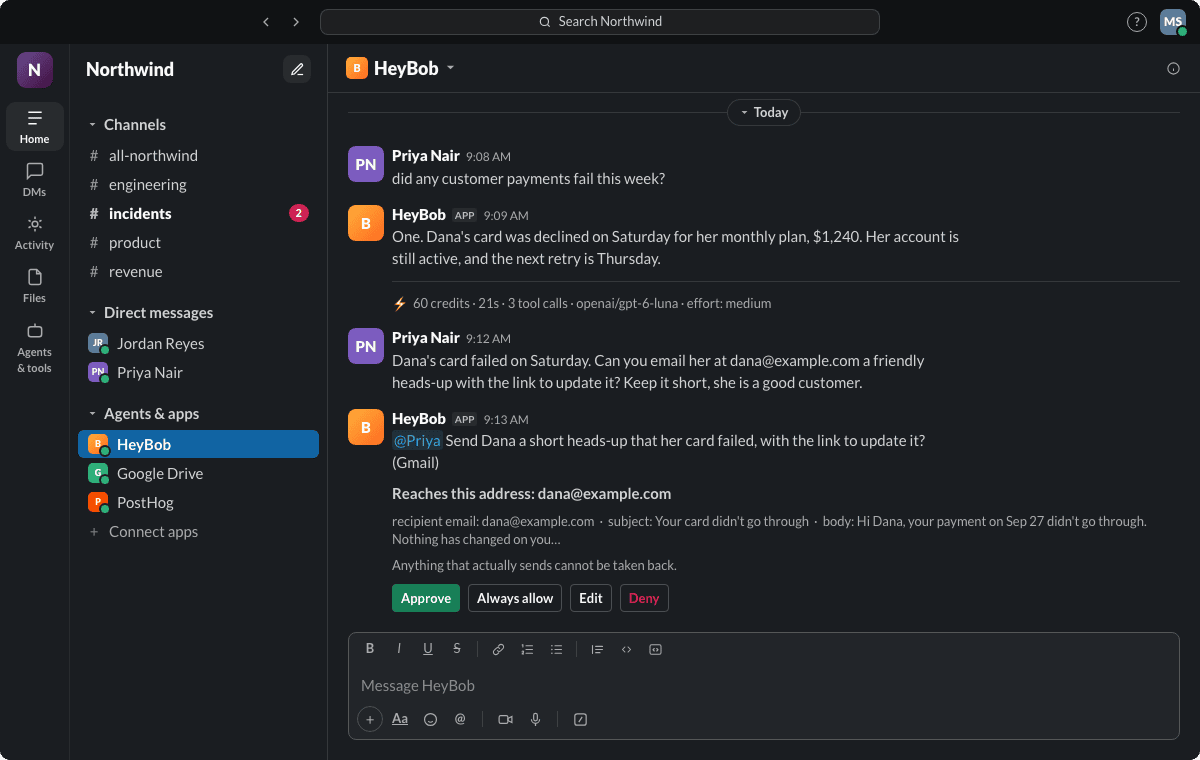
Choose Edit to change a field once before it is written. Choose Always allow when you trust a kind of change, like adding notes, and want Bob to stop asking for it. On a scheduled job nobody is there to press a button, so Bob tells you up front which apps the job will use and whether it may change anything, and you agree to that once. How approvals work.
CRM cleanup with Bob
“Please clean up my messy CRM” is a fair thing to ask an AI agent. Here is what Bob does about it, and what he leaves to you.
“Find contacts that look like duplicates, by name or email domain. List deals with no close date or no amount, and deals with no note in two weeks. Group it all by owner.”
Bob searches HubSpot and posts the list in the thread. Then you choose what to fix:
- Deals: he can fill in a missing close date or amount, or move a stalled deal's stage, after you approve each change.
- Notes: he can add a note to a record explaining what was found or changed, so the next person has context.
- Duplicates: he finds and lists them. He does not merge or delete records, so the merge happens in HubSpot, by a person.
Ask for the same list every Monday and it becomes a schedule. A week with nothing new to report posts nothing.
Log inbound email to HubSpot
The emails that matter most to the CRM often never reach it: a reply from a prospect, a client asking for a change, an intro from a partner. Bob can close that gap.
A prospect replies. The deal gets the note.

He reads the email. The deal gets the note.
Bob matches the sender to a HubSpot contact or deal and adds the note. You agreed to that once, when you set up the watch.
“Watch my inbox for replies from people at companies we have open deals with. Log a short note on the matching deal in HubSpot.”
- On Gmail, Bob watches your inbox for the emails you describe. When one arrives he reads the thread, finds the contact or deal, and adds the note. When you set up the watch, Bob tells you he will add HubSpot notes and you agree once. If you would rather check each note first, ask him to post the draft note in the thread instead of adding it. When there is nothing to do, he stays quiet. More on Bob and Gmail.
- On Outlook or anything else, forward the emails to an address Bob gives you, and he does the same.
- No match? Bob says so and can draft a new contact for you to approve.
Five more things teams ask Bob
1. Brief me before a call
“Brief me on Acme before today's call: the HubSpot company and deal, the latest email thread, and what we promised last time.”
2. Which deals went quiet?
“Which deals have gone quiet for two weeks? Group them by owner and post it in #sales every Monday.”
3. Log the meeting
“Turn this call summary into a HubSpot note on the Acme deal, with the next steps and who owns them.”
4. Update the deal after a decision
“Move the Acme deal to contract review and set the close date to the end of the month. Don't change the amount.”
5. Build the pipeline page
“Build me a page with open pipeline by stage and this month's won deals, and keep it updated every morning.”
Bob posts a link to a live page that refreshes from HubSpot. Only your signed-in team can open it unless an admin or the page owner turns on a public link. How pages work. Agencies use the same pattern for monthly client reports.
How to connect HubSpot
- Ask Bob in Slack or the HeyBob app to connect HubSpot.
- Open the link he posts and sign in to the HubSpot account you want him to use.
- Review the access HubSpot asks for, then come back to the thread and ask again.
Each person connects with their own HubSpot user, so Bob never borrows someone else's access quietly. If you work in more than one HubSpot account, as many agencies do, connect each one and tell Bob which you mean. More on connecting apps.
Limits worth knowing
- Permissions still apply. Bob cannot see records or properties the connected HubSpot user cannot.
- The writes are specific. Create a contact, update a deal and add a note. Bob does not merge, delete or bulk-edit contacts.
- Search needs real names. Custom properties and pipeline stages should be asked for the way they are named in your portal.
- Bob can be wrong, like any AI. Keep approvals on until you have checked his work for a while. If he gets a run wrong, the rerun is free.
What it costs
HeyBob has no per-seat charge, so the whole sales team can use Bob. Plans start at $75 a month for 40,000 credits, and a credit is about a fifth of a cent. Spend caps per person and per workspace keep the bill inside a number you choose. New workspaces start with $100 of work, on us. See pricing. Weighing other agents? Compare HeyBob with Viktor, Lindy or Slack AI.
FAQ
Is there a HubSpot AI agent that works in Slack?
Yes. Bob, the AI employee from HeyBob, connects to HubSpot and works in Slack and the HeyBob app for Mac, Windows and Linux. Ask him in plain words to find contacts, companies or deals, read a record, create a contact, update a deal or add a note. He asks before every change you request in chat.
What can Bob do in HubSpot?
He can search contacts, companies and deals, read any of those records, create a contact, update a deal (stage, amount, close date and other properties) and add a note to a contact, company or deal.
Can Bob clean up duplicates in HubSpot?
He can find them. Bob searches your contacts, companies and deals and lists likely duplicates, records missing key fields and deals that have gone quiet. He can fix deal properties and add notes after you approve. He does not merge or delete records, so merging stays in HubSpot.
Can Bob log inbound emails to HubSpot automatically?
Yes. On Gmail, Bob watches your inbox for the emails you describe. On Outlook, forward them to an address Bob gives you. When you set up the watch, Bob tells you he will add HubSpot notes and you agree once. If you would rather check each note first, ask him to post the draft note in the thread instead of adding it.
Whose HubSpot access does Bob use?
The access of the person who connected HubSpot. If that person cannot see a record or property, neither can Bob. You can connect more than one HubSpot account and tell Bob which one you mean.
Does Bob change HubSpot without asking?
Not when you ask him in chat: creating a contact, updating a deal and adding a note all ask first. A scheduled job or inbox watch changes HubSpot only if you allowed it when you set it up.